

Description
Clean Checkout for WooCommerce is a lightweight WooCommerce checkout field editor for Classic Checkout and WooCommerce Checkout Blocks.
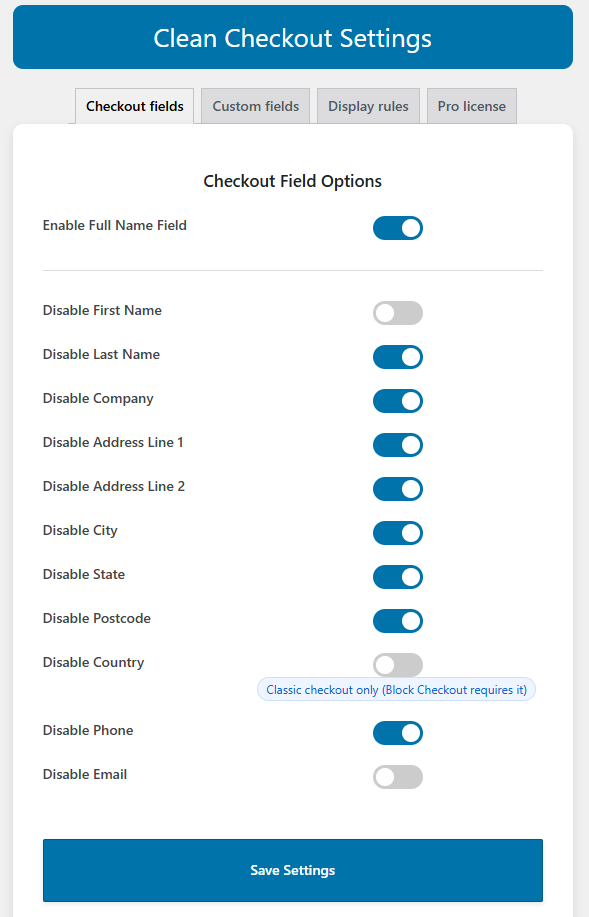
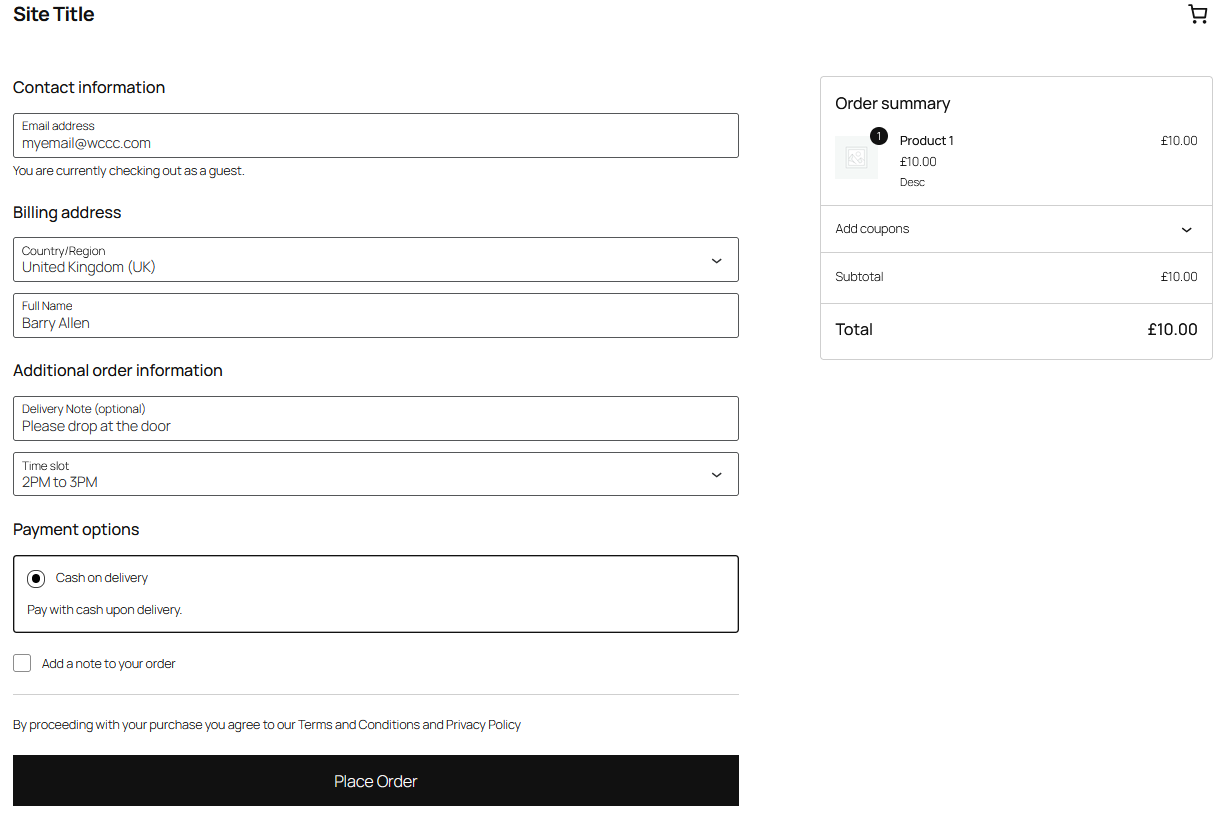
Use it to remove supported checkout fields you do not need, replace First Name and Last Name with a single Full Name field, add custom checkout fields, and show or hide fields based on conditions, all without writing code.
Configure everything under WooCommerce Clean Checkout, using the Checkout fields, Custom fields, and Display rules tabs.
What you can do with Clean Checkout
- Hide supported default WooCommerce checkout fields.
- Replace First Name and Last Name with a single Full Name field.
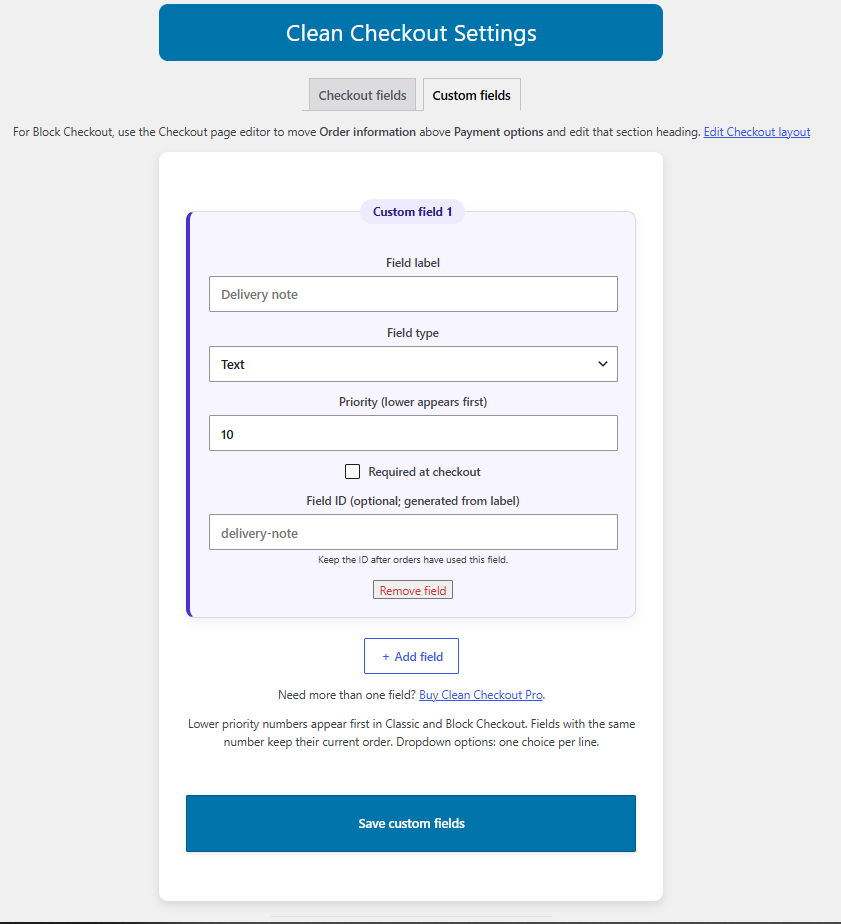
- Add one custom checkout field for free.
- Apply conditional display rules to one custom or supported existing field for free, separately from the custom-field creation limit.
- Show or hide fields using AND/OR condition groups and readable rule summaries.
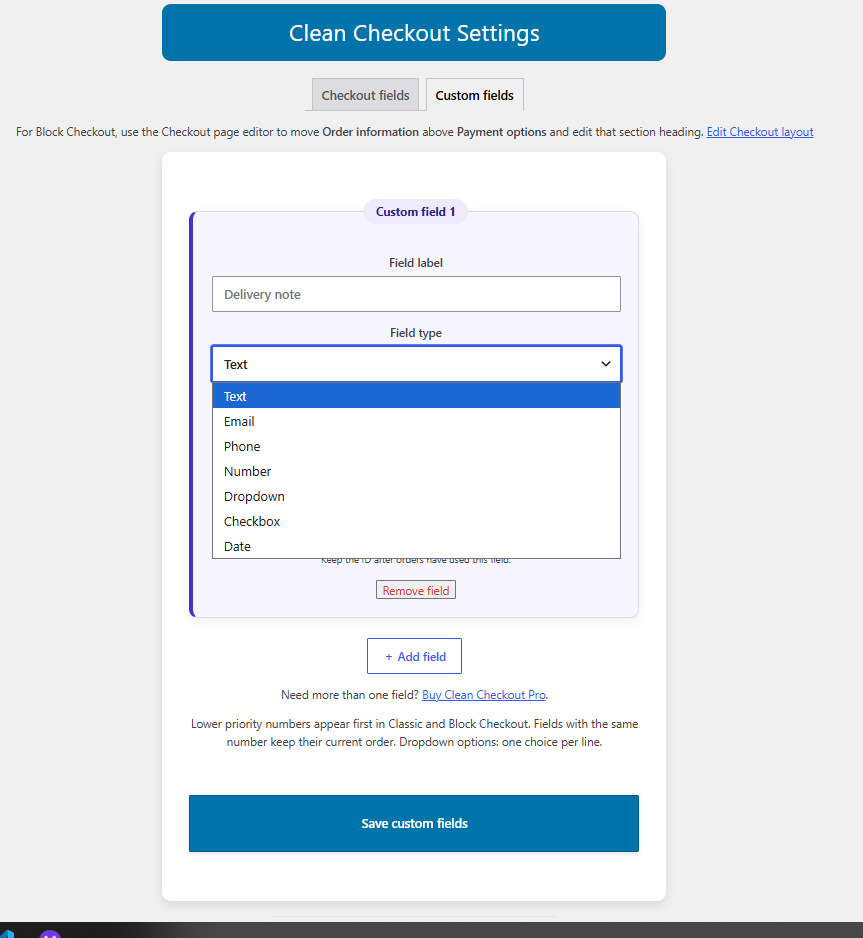
- Choose from text, email, phone, number, dropdown (select), checkbox, date, textarea, radio, URL, paragraph, or heading fields.
- Make the custom field required or optional.
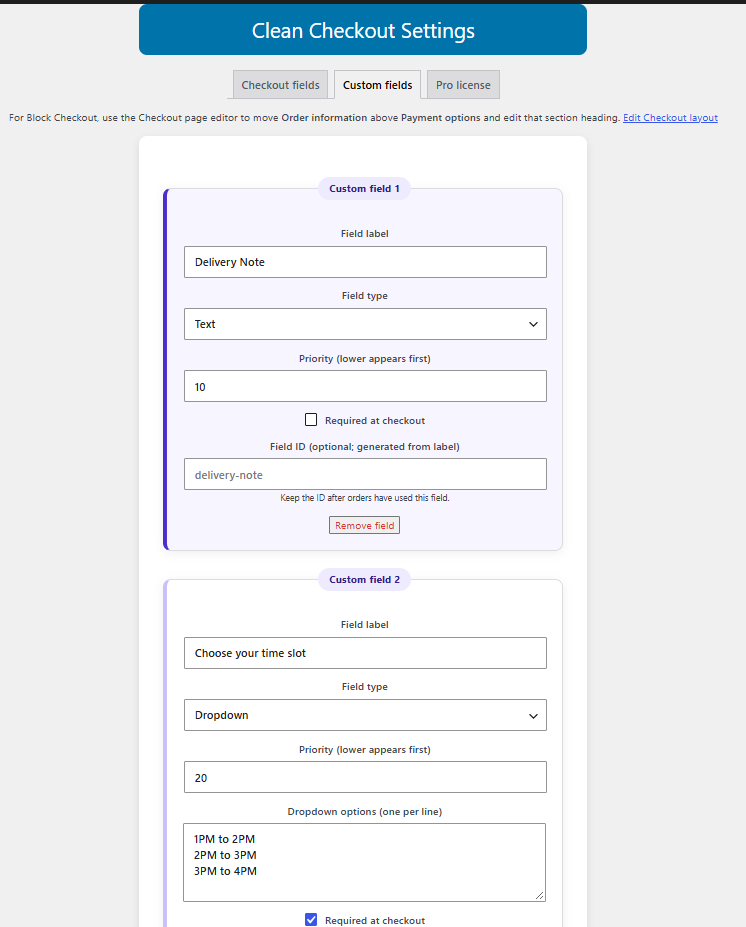
- Set a priority number to control custom-field order.
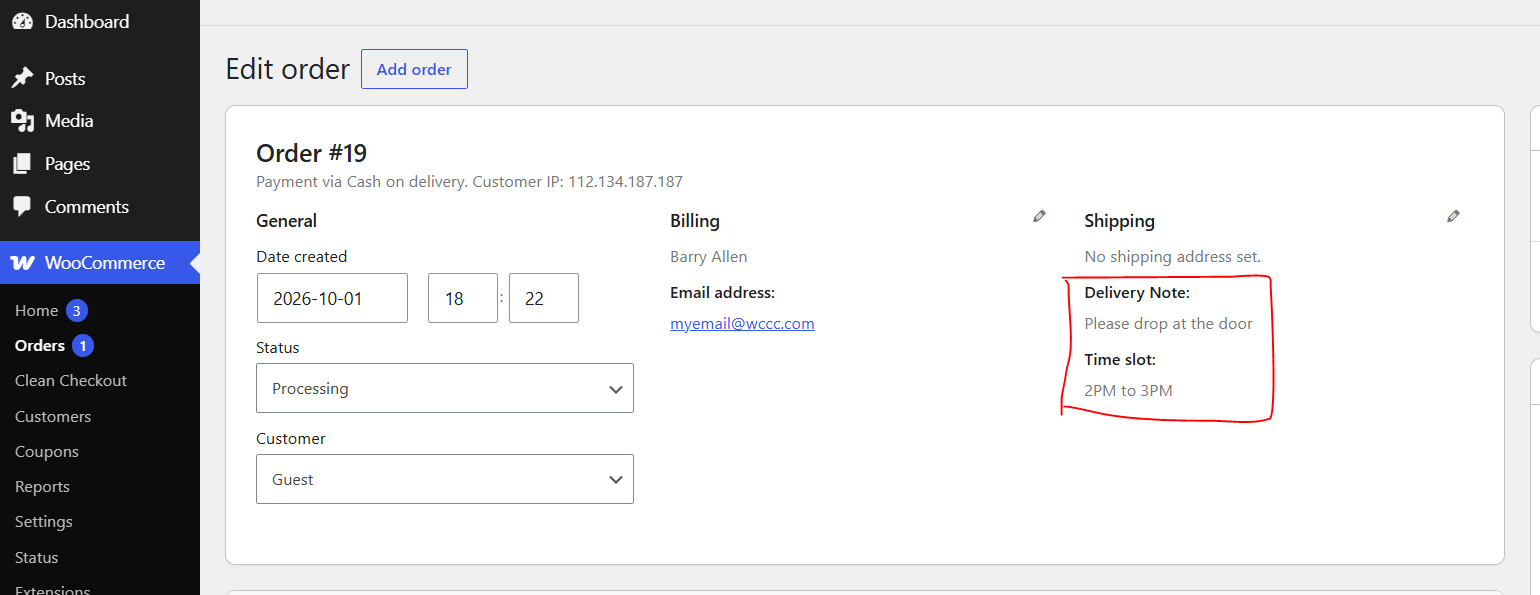
- Save custom-field values with the WooCommerce order.
- Display custom-field values in order details and order emails.
- Use the same plugin with Classic Checkout and WooCommerce Checkout Blocks.
- Use focused checkout controls and display rules without a large checkout builder.
Clean Checkout is useful for stores that want a simpler checkout without installing a large checkout builder or maintaining custom PHP snippets.
For example, you can use a custom field to collect a company registration number, CNPJ, delivery note, VAT or tax ID, gift message, preferred date, reference number, or other order information.
Remove unnecessary WooCommerce checkout fields
Clean Checkout lets you hide default WooCommerce checkout fields that your store does not need.
You can disable:
- First Name
- Last Name
- Company
- Address Line 1
- Address Line 2
- City
- State
- Postcode
- Country
- Phone
You can also replace the separate First Name and Last Name fields with a single Full Name field.
This can help create a shorter, simpler checkout for digital products, services, local stores, and other WooCommerce shops that do not need every default checkout field.
Checkout Blocks note: WooCommerce controls some fields differently in Block Checkout. Country and Email cannot be removed by Clean Checkout in Block Checkout. These fields can still be controlled in Classic Checkout where supported.
Free vs Pro
Clean Checkout Free includes the core checkout controls. Pro extends the same plugin when you need more custom fields.
- Custom checkout fields: Free: 1 field | Free + Pro: Up to 50 fields
- Conditional fields: Free: 1 field | Free + Pro: Up to 50 fields
- Condition types and AND/OR groups: Free: Included | Free + Pro: Included
- Classic Checkout & Checkout Blocks: Free: Included | Free + Pro: Included
- Single Full Name field: Free: Included | Free + Pro: Included
- Hide supported default fields: Free: Included | Free + Pro: Included
- Twelve custom-field types: Free: Included | Free + Pro: Included
- Required fields & priority ordering: Free: Included | Free + Pro: Included
- Custom values in orders & emails: Free: Included | Free + Pro: Included
- Support: Free: WordPress.org support forum | Pro: 1 year of product support
- Updates: Free: WordPress.org updates | Pro: 1 year of new Pro versions
- Price: Free | Pro: US$19 for one website
The custom-field creation limit and conditional-field limit are separate. Multiple conditions on one field still count as one conditional field.
Pro costs US$19 for one website, with one year of access to new versions and product support. After that year, the installed version keeps working on its activated website. Renew only if you want new downloads and product support. There is no automatic renewal.
View Clean Checkout Pro features and pricing
The Free plugin works without a WPSH account or license. Pro requires the Free plugin and an activated license. If Pro is deactivated or its activation is unavailable, extra field definitions and display rules are retained, while only the Free limits apply at checkout.
Conditional checkout fields
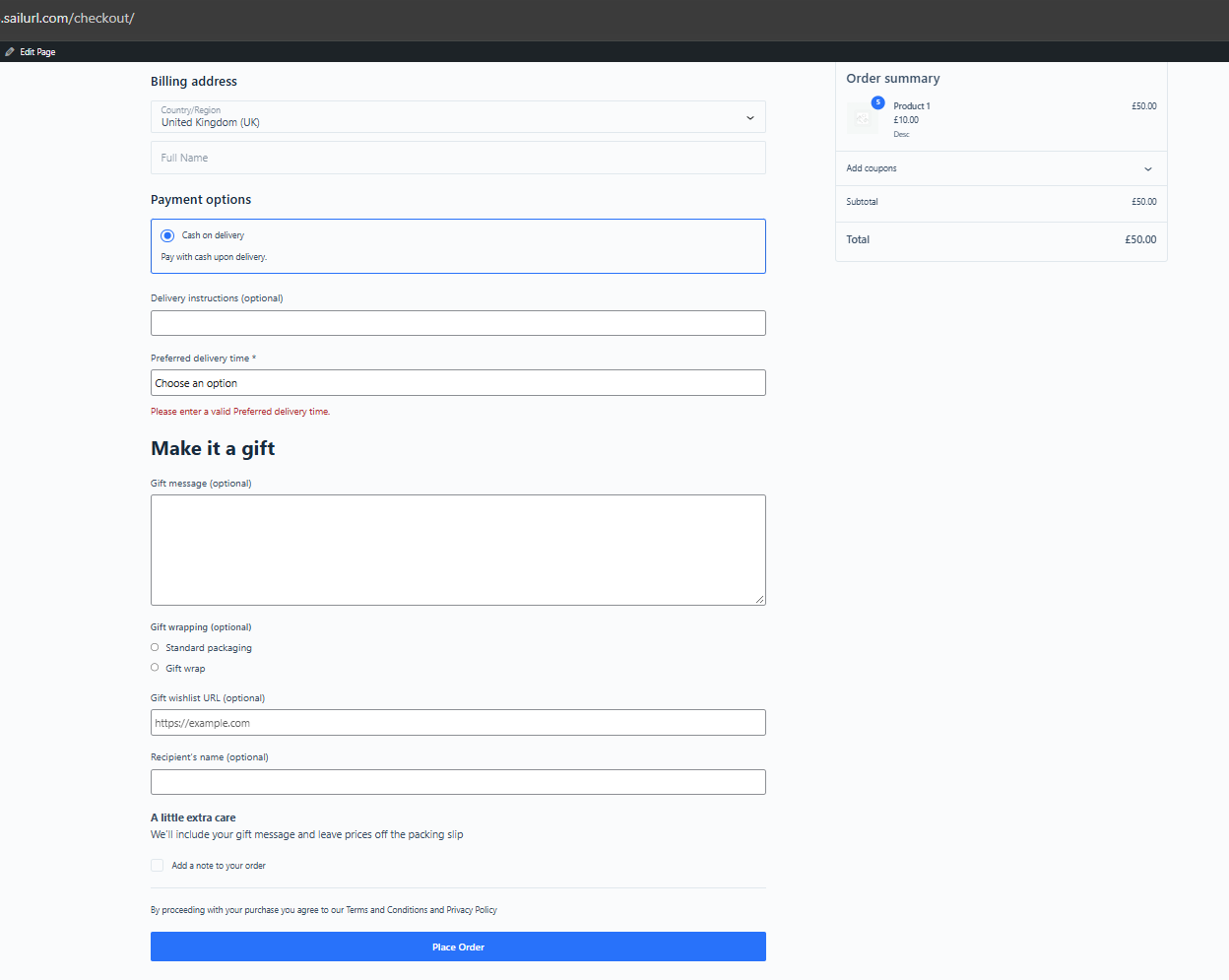
Conditional fields are available now in both Free and Pro. Show only the fields relevant to each order, such as a gift message when a gift checkbox is selected or delivery instructions when the cart meets your conditions.
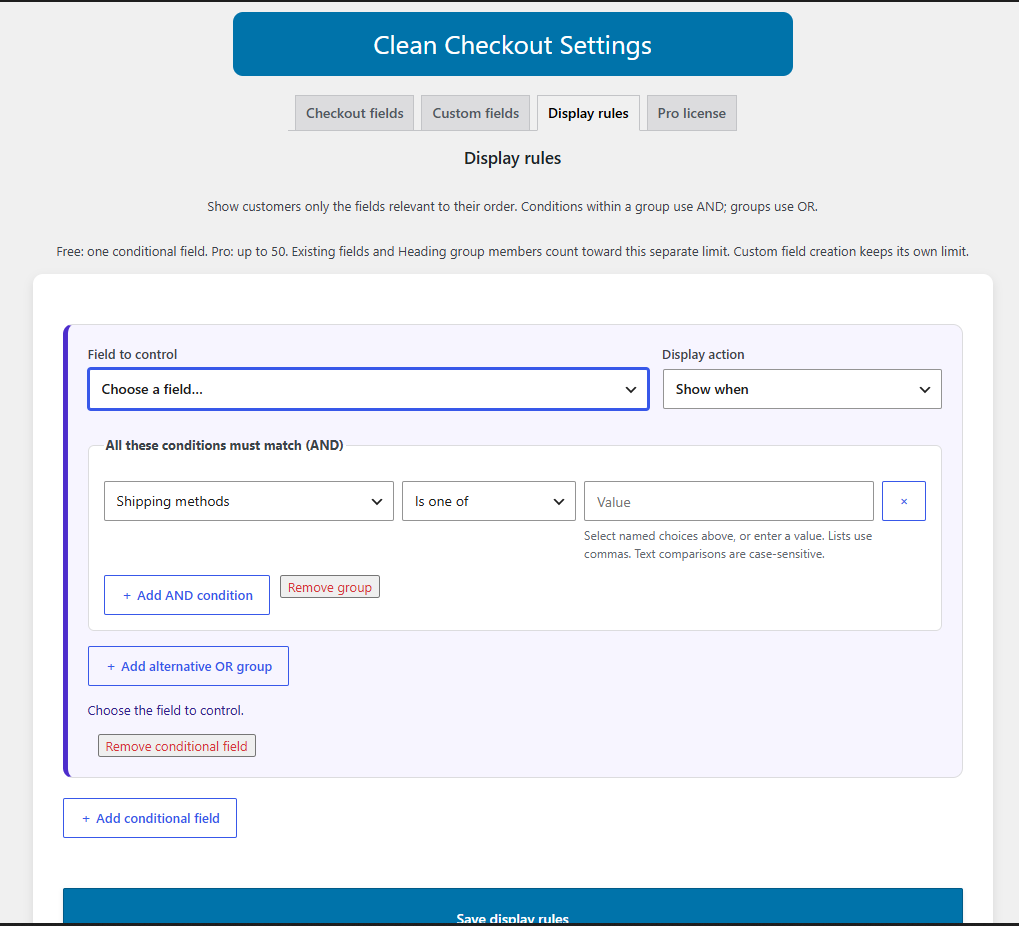
Choose Show when or Hide when. All conditions within a group must match (AND); any alternative group can match (OR). Search named choices for products, categories, and other supported sources, and review the readable summary before saving.
Conditions can use:
- Cart products, exact variations, product categories (including child categories), product tags, shipping classes, product types, and physical, virtual, or downloadable products.
- Cart subtotal, final total, quantity, weight, and applied coupons.
- Customer roles, logged-in or guest status, payment method, and shipping methods.
- Billing and shipping field values, other custom-field values, dates, weekdays, and Today in the store timezone.
Comparisons include supported text, number, checkbox, date, and list checks. Advanced text patterns support a bounded subset of pattern matching. Cart subtotal is before discounts and excludes tax; final total includes discounts, tax, and shipping. Weight uses the store’s configured units.
Custom fields can inherit visibility from a Heading group. The Heading and each member receiving a rule count individually toward the conditional-field limit. Free allows one conditional field; Pro allows up to 50.
Hidden required fields do not block checkout. Hidden answers are excluded from orders and order emails. Rules cannot depend on themselves or form circular dependencies.
Existing WooCommerce fields: Optional Company, optional Address line 2, and Order notes can be shown or hidden in both checkout types. Showing or hiding other existing address fields is supported in Classic Checkout only; their values can still trigger conditions in Classic and Block Checkout. Country and Email are condition sources, rather than fields whose visibility is controlled by display rules. A field disabled in Checkout fields stays disabled.
Block Checkout notes
WooCommerce Checkout Blocks have some field restrictions that are controlled by WooCommerce itself.
Country and Email cannot be removed by Clean Checkout in Block Checkout. Textarea, radio, URL, paragraph, and heading fields use dedicated Block Checkout controls. When one of these types or a supported display rule is active, the whole custom-field group uses those controls to preserve priority order. Otherwise, email, phone, number, and date custom fields use text inputs with server-side format validation. Dates use YYYY-MM-DD. Heading and Paragraph display content without collecting or saving customer answers.
The plugin’s admin assets load only on its own settings page.
Privacy and external services
Free does not send an activation email or automatically transmit website or administrator details to WPSH. Its checkout-field features do not require an external service.
If you choose Buy Pro, you can review your name and email in the purchase popup before continuing to the WPSH licensing portal. The purchase form also sends your website’s Pro-license settings URL so the portal can offer a return link. PayHere handles payment on its own checkout page.
Developed by Riffaz A. M.
Screenshots
Installation
- Install and activate WooCommerce.
- Upload the
clean-checkout-for-woocommercefolder to/wp-content/plugins/, or install the plugin from the WordPress Plugin Directory. - Activate Clean Checkout for WooCommerce through the Plugins menu.
- Open WooCommerce Clean Checkout Checkout fields to configure supported default fields.
- Open the Custom fields tab to add your optional custom field, choose its type, and save.
- Open Display rules, choose the Field to show or hide, add conditions, and save.
- Test your checkout page after changing fields or rules.
- For Full Name in Block Checkout, leave the Disable First Name switch off because WooCommerce uses that underlying field for Full Name.
FAQ
-
Does this support both Classic Checkout and Checkout Blocks?
-
Yes. Clean Checkout supports Classic Checkout and WooCommerce Checkout Blocks.
Use a WooCommerce version with the additional checkout-fields API to add custom fields in Blocks. WooCommerce 10.2 or newer is recommended.
-
Can I remove every default field in Block Checkout?
-
No. WooCommerce controls some fields separately.
Country and Email cannot be removed by Clean Checkout in Block Checkout. The settings screen identifies options that are Classic-only.
-
Which custom-field types are available for free?
-
Text, email, phone, number, dropdown (select), checkbox, date, textarea, radio, URL, paragraph, and heading.
Free supports one custom field in total; Heading and Paragraph each count as a field. Pro raises the limit to 50. Free also allows one conditional field separately from its custom-field creation limit.
Fields that collect answers have server-side validation. Dates use
YYYY-MM-DD. -
Where are custom-field values saved?
-
Custom-field values are saved with the WooCommerce order and shown in order details and order emails.
-
How do I add multiple custom fields?
-
Install Clean Checkout Pro alongside Free and activate your license under WooCommerce Clean Checkout Pro license.
The Add field button then supports up to 50 fields. Lower priority numbers appear first.
In Blocks, use the Checkout page editor to move or rename the Order information section.
-
How do I add conditional fields?
-
Open WooCommerce Clean Checkout Display rules. Choose the field to show or hide, select the action, and add your conditions. Conditions within a group use AND; alternative groups use OR.
Free allows rules on one custom or supported existing field. An activated Pro add-on raises this separate limit to 50. Multiple conditions on the same field count as one conditional field.
-
What does Show/hide: Classic only mean?
-
The label applies to showing or hiding that existing field itself. Its value can still be used to trigger conditions for other fields in both Classic and Block Checkout. For example, Billing First Name can trigger a custom-field rule in either checkout type.
-
Hidden required fields do not block checkout. Hidden answers are excluded from the order and order emails. If a dependent field’s source is hidden or unavailable, that condition group cannot activate it.
-
What happens after the year of Pro updates and support?
-
The installed Pro version keeps working on its activated website.
Renew only if you want new downloads and product support. There is no automatic renewal, and updates are installed manually.
Reviews

Contributors & Developers
“Clean Checkout for WooCommerce” is open source software. The following people have contributed to this plugin.
Contributors
Translate “Clean Checkout for WooCommerce” into your language.
Interested in development?
Browse the code, check out the SVN repository, or subscribe to the development log by RSS.
Changelog
2.3.0
- Added conditional display rules with Show/Hide actions, AND/OR groups, searchable named choices, and readable rule summaries.
- Free allows one conditional field; Pro allows up to 50, separately from the custom-field creation limit.
- Added conditions for products, variations, categories, tags, shipping classes, product types, physical/virtual/downloadable products, cart subtotal and total, quantity, weight, coupons, customer roles, login status, payment/shipping methods, address and custom-field values, dates, and weekdays.
- Added Heading groups; each conditional group member counts toward the field limit.
- Hidden required fields do not block checkout, and hidden answers are excluded from orders and order emails.
- Added server-side rule validation, circular-dependency checks, bounded advanced patterns, and retention of paused Pro rules.
- Added conditional visibility for optional Company, optional Address line 2, and Order notes in both checkouts. Other existing address targets support Show/Hide in Classic only; their values remain condition sources in both checkouts.
- Improved help panels, mobile layouts, and Pro purchase links across the settings tabs.
- Added documentation and a screenshot caption for conditional fields.
2.2
- Added Textarea, Radio, URL, Paragraph, and Heading fields to both Free and Pro.
- Available field types: Text, Email, Phone, Number, Dropdown (Select), Checkbox, Date, Textarea, Radio, URL, Paragraph, and Heading.
- Free remains limited to one custom field in total; Pro supports up to 50 fields.
2.1.0
- Added separate Checkout fields and Custom fields tabs.
- Added one configurable custom order field for Classic and Block Checkout, with seven field types.
- Added required-field settings, priority ordering, and order/email display for custom values.
- Made date fields compatible with the Block Checkout field API, with calendar-date validation.
- Added integration with the separate Clean Checkout Pro add-on for multiple custom fields and license management.
- Added a Pro purchase preview linked to the live licensing portal.
- Updated screenshots and added a Free vs Pro comparison.
2.0.3
- Tested with WordPress 7.1.
2.0.2
- Tested with WordPress 7.0.1.
- Updated plugin documentation and made minor maintenance improvements.
2.0.1
- Fixed a missing file causing a fatal error on activation.
- Clarified Full Name and First Name settings for Block Checkout.
2.0.0
- Added Checkout Blocks support and the Full Name field.
- Unified checkout settings and added Classic-only field notes.
- Improved the settings layout and support links.
1.0
- Initial release with Classic Checkout field controls and Full Name.