
Description
ByteCoreStack – MCP Connector for AI Tools turns your WordPress site into a Model Context Protocol (MCP) server. MCP is an open standard that lets AI assistants call “tools” provided by other software. Once connected, an AI client such as Claude, ChatGPT, or Cursor can read and manage your site through clearly defined WordPress actions, and you just describe what you want in plain language.
For example, you can ask your AI assistant to:
- “Draft a post about our spring sale, add it to the News category, and leave it as a draft for me to review.”
- “List WooCommerce orders that are still processing from the last 7 days and summarise them.”
- “Find posts with no SEO meta description and suggest one for each.”
- “Show me pending comments and mark the obvious spam.”
- “Check site health and tell me which plugins have updates available.”
- “Move the call-to-action block on the About page above the team section and change its button text.”
- “Set up a shipping zone for Canada with a flat rate of 15 and free shipping over 100.”
Every action runs as the WordPress user who approved the connection and is checked against that user’s normal capabilities. An Editor’s AI client can do what an Editor can do in wp-admin, and nothing more.
What’s included
360 tools across WordPress core and popular plugins. Integration tools only appear when the plugin they work with is active, so your AI client only sees tools that work on your site.
- Content: posts, pages, revisions, scheduling, post formats, page templates, reusable blocks, search-and-replace, duplication, bulk create, update and Trash, and a content calendar.
- Block editing: list a post’s blocks, then insert, change, move, or remove a single block (including blocks inside Groups and Columns) without rewriting the rest of the post.
- Site Editor (block themes, read-only): list and read templates and template parts, and read Global Styles.
- Media: browse the Media Library, upload from a URL or file data, set featured images, edit titles, captions and alt text, find images missing alt text, find orphaned media, and regenerate thumbnails.
- Taxonomies, menus and widgets: categories, tags, custom taxonomies and term meta, navigation menus and menu locations, and classic widgets.
- Comments: list, create, approve, spam, trash, edit, and moderate in bulk.
- Users: list users and roles, update profile fields, assign roles (with promote_users), send password-reset emails, view or end sessions, and export users to CSV. No tool creates new users.
- Site administration: site info and health, full Site Health tests, plugin and theme listing, install and update from WordPress.org, core updates, cron events, transients, cache flush, rewrite rules, database size, debug and error logs, SSL status, and broken-link checks.
- WooCommerce: products, variations, attributes, stock, orders (including creating manual orders), order notes, refunds, coupons, customers, product reviews (moderate and reply), shipping zones and methods, tax rates, payment gateways, sales reports, top sellers, low stock, customer lifetime value, Subscriptions, Bookings, and Memberships.
- SEO: read and update titles, meta descriptions and focus keywords, run bulk SEO audits, and check site-wide SEO settings for Yoast SEO, Rank Math, All in One SEO, SEOPress, Slim SEO, and The SEO Framework.
- Page builders and fields: Elementor (templates, page outlines, text and image replacement, global widgets), Bricks, Divi, and Advanced Custom Fields (fields, field groups, repeaters, options pages).
- Forms: Gravity Forms, WPForms, Ninja Forms, Formidable Forms, Contact Form 7, and WP Simple Pay.
- Commerce, membership and learning: Easy Digital Downloads, MemberPress, Restrict Content Pro, LearnDash, GiveWP, AffiliateWP, Ultimate Member, and User Registration.
- Community and events: BuddyPress, bbPress, and The Events Calendar.
- Marketing and analytics: FluentCRM, Mailchimp for WP, Google Site Kit, MonsterInsights, and WP Statistics.
- Translation: WPML, Polylang, and TranslatePress.
- Backups, security and operations: UpdraftPlus, Duplicator, All-in-One WP Migration, Wordfence, Sucuri, Two Factor, Akismet, Jetpack, WP Mail SMTP, WP All Import/Export, Custom Post Type UI, Code Snippets, Redirection, Broken Link Checker, and cookie-consent status for CookieYes and Complianz.
The server also provides MCP resources (your 20 most recent published posts and pages) and ready-made prompts for writing a post, auditing a post’s SEO, moderating comments, and summarising the site.
Guided connection setup
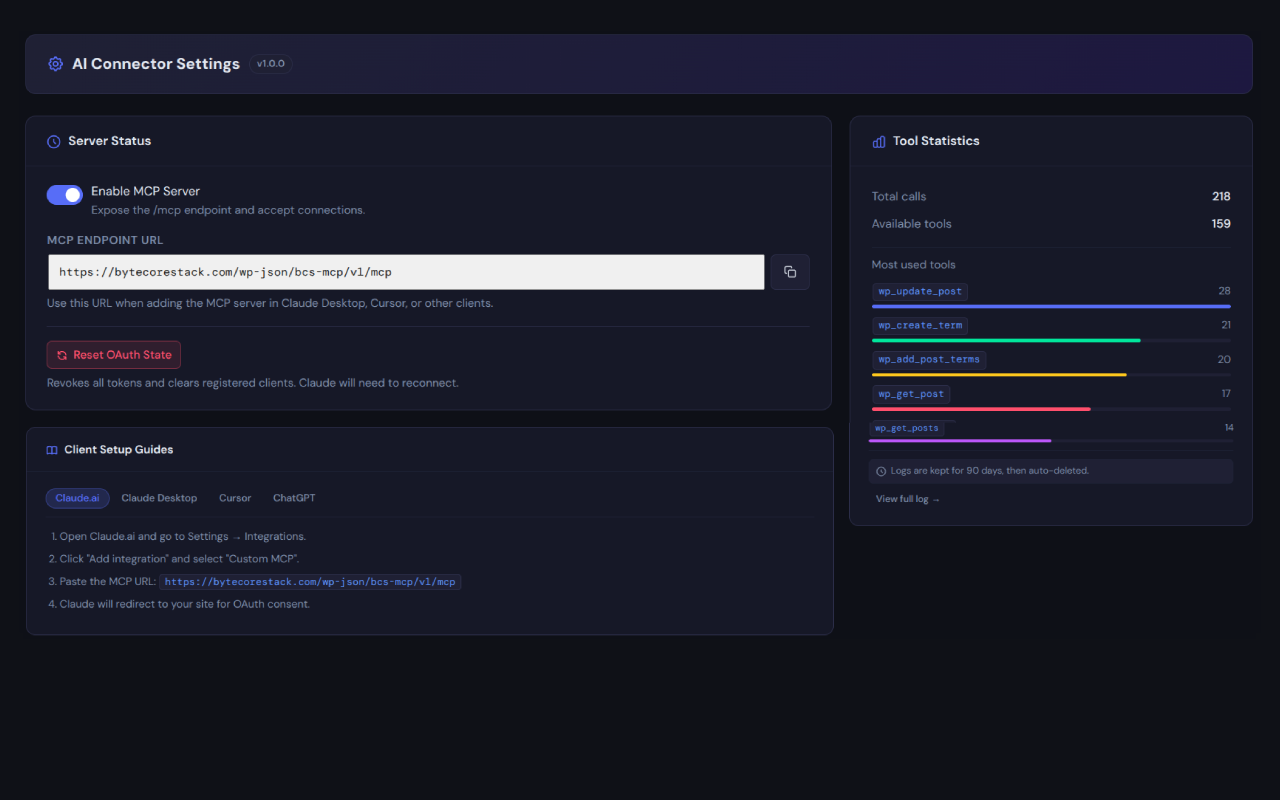
Connect & settings walks you through connecting step by step. It includes instructions for Claude.ai, Claude Desktop, ChatGPT, and Cursor, a copy button for your endpoint, and a read-only test prompt. The page listens for that test call and confirms when your AI app has reached your site. Any other client that supports MCP over Streamable HTTP with OAuth can connect too, and older clients can use the legacy SSE transport.
Built with security in mind
- Off until you turn it on. The MCP server is disabled after activation and accepts no connections until an administrator enables it.
- OAuth 2.0 with PKCE (S256), no shared API keys. Each AI client registers itself (Dynamic Client Registration), you approve it on a consent screen while logged in, and it receives short-lived access tokens (1 hour) and refresh tokens. Tokens are stored only as SHA-256 hashes.
- A consent screen you can trust. It shows the domain access will be sent to, warns when a client uses a well-known AI product’s name but sends access somewhere else, and cannot be embedded in another site (clickjacking protection).
- Only trusted roles can connect. By default only accounts that can edit posts (Contributor and above) can approve an AI client. Subscribers and customers cannot. Developers can require a higher capability with a filter.
- Permissions are re-checked on every request. The MCP endpoint checks the token in WordPress’s REST permission callback, and every tool checks the connected user’s capability for its specific action. If you demote or delete a user, their AI clients lose access straight away. You can also disconnect any single client, or all of them, at any time.
- Guard-rails on sensitive data. Role and capability changes are never possible through user meta. Protected meta follows WordPress core rules. Attachment file paths cannot be changed. Credential-like values and whole secret options (passwords, API keys, tokens, salts, secrets) are redacted from tool output and from the Activity log.
- Administrator-only power tools. Running shortcodes, reading plugin settings and logs, installing or updating software, and resetting two-factor need the same administrator capabilities as in wp-admin, and changing an email address needs
edit_users. No tool accepts PHP code, edits files, runs SQL supplied by the AI, or creates users. - No site-wide design or settings changes. Templates, template parts, Global Styles, custom CSS, and site settings can be read by administrators but never changed through MCP. Block markup from the AI is always cleaned of scripts and unsafe attributes, even for administrators.
- Rate limiting: 60 MCP requests per minute per IP address, plus a separate limit on client registration.
- Optional IP allowlist for the MCP endpoint (single addresses or IPv4 CIDR ranges).
- Optional confirmation for destructive actions. When enabled, delete-type tools return a preview first and only run after the AI client repeats the call with
confirm: true. - Plugin and theme installs come only from WordPress.org by directory slug. No tool accepts an arbitrary download URL.
Undo for AI changes
114 tools return a single-use undo token valid for 7 days whenever they actually change something. Your AI client can call bcs_undo_operation with that token to put things back. Supported changes include:
* Post and page edits, block edits, bulk creates and updates, scheduling, passwords, SEO fields, custom fields, featured images, templates, formats, categories and tags, and site-wide search and replace.
* Anything the AI creates: posts, pages, duplicates, clones, templates, events, products, coupons, variations, comments, terms, menus, menu items, and uploaded media.
* Trash actions, including bulk Trash.
* WooCommerce product, stock, variation, coupon, attribute, and order status changes, plus order notes and product review moderation and replies.
* Comments, categories and tags, media details, menus, widgets, menu locations, ACF fields, field groups and options pages, user profiles and roles, scheduled events, plugin activation, and changes in Redirection, Gravity Forms, bbPress, BuddyPress, Custom Post Type UI, Code Snippets, AffiliateWP, and WPML or Polylang.
When undone:
* Edited items return to exactly how they were before the AI call.
* Items the AI created are moved to Trash. Menu items, variations, and uploaded files are removed, because they have no Trash.
* Items the AI deleted (terms, menu items, redirects, custom field rows) are put back with their original IDs.
* Trashed items return to their previous status.
Site administrators can also undo these changes from Activity: entries that can still be undone show an Undo button next to View for 7 days, and undone entries show Undone. After 7 days the saved data is deleted permanently by the daily cleanup. Through the AI client, only the same WordPress user and the same AI client can use a token. An undo is refused if anything it would restore has been changed again since, so newer work is never overwritten, or if the user no longer has the needed permission. The whole undo is checked before anything is changed. Tokens are stored as hashes and never written to the Activity log. The previous values are kept in a local database table until the token expires and are never sent anywhere.
Trash undo tokens are only issued when your site keeps Trash for at least seven days. Some actions cannot be undone and do not return a token: permanent deletes (force=true), deleting media, users, menus, or form entries, sending email or password-reset links, payments and refunds, subscriptions, memberships and enrolments, mailing-list sign-ups, plugin, theme, and core installs or updates, cache or maintenance actions, and new WooCommerce orders, shipping zones and methods, and tax rates.
Dashboard, Activity log and diagnostics
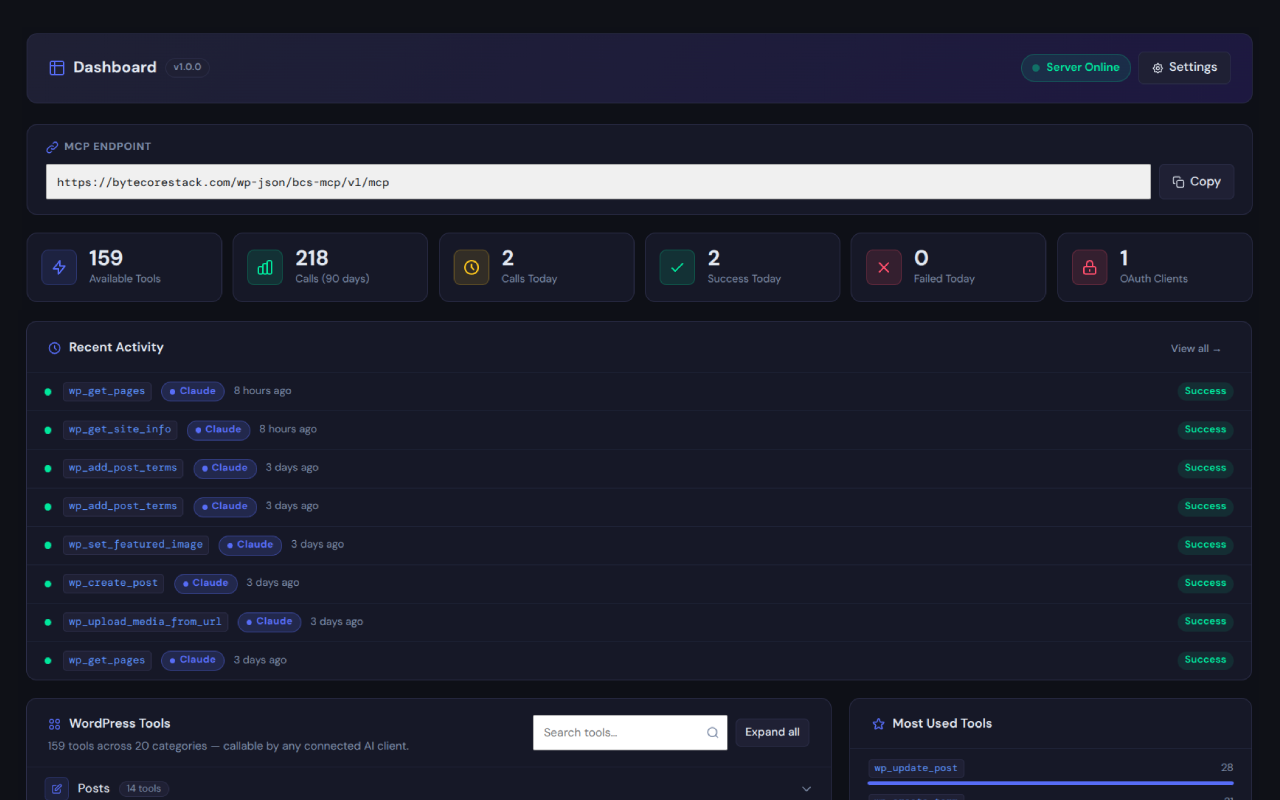
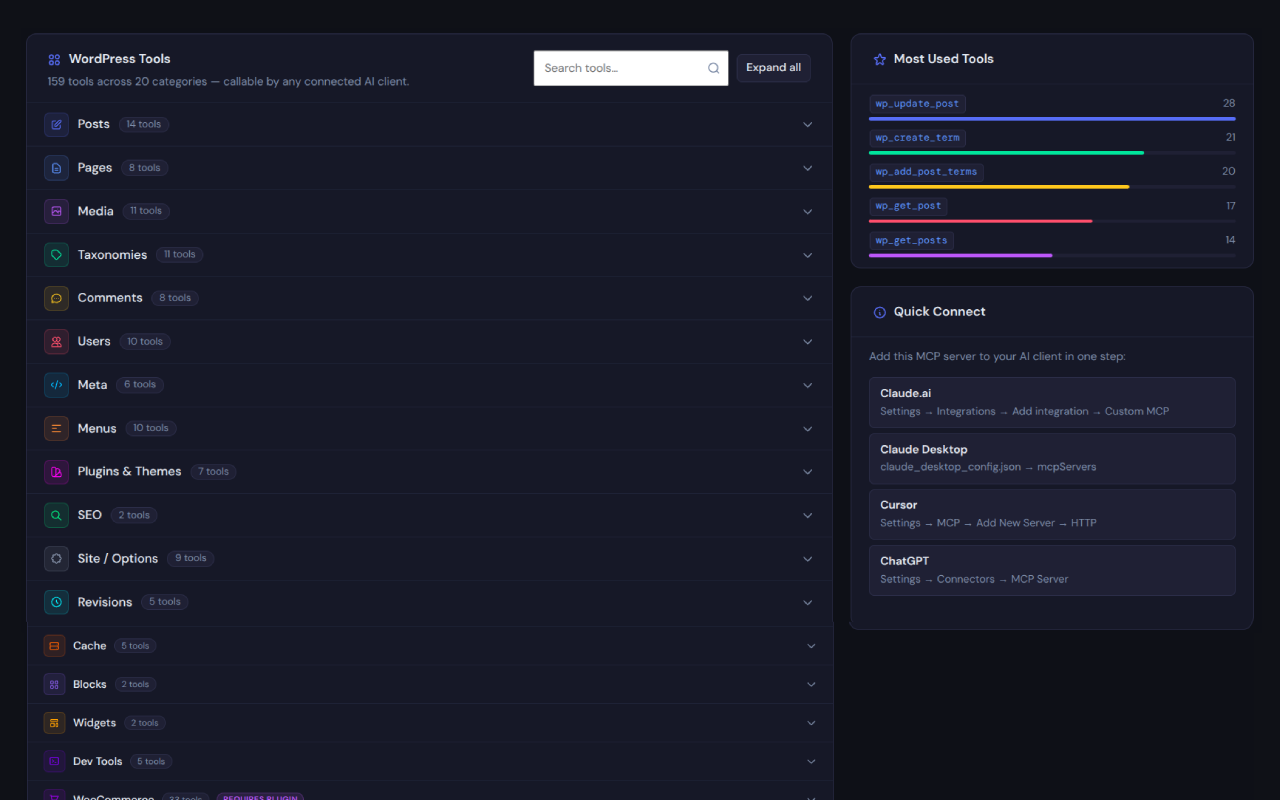
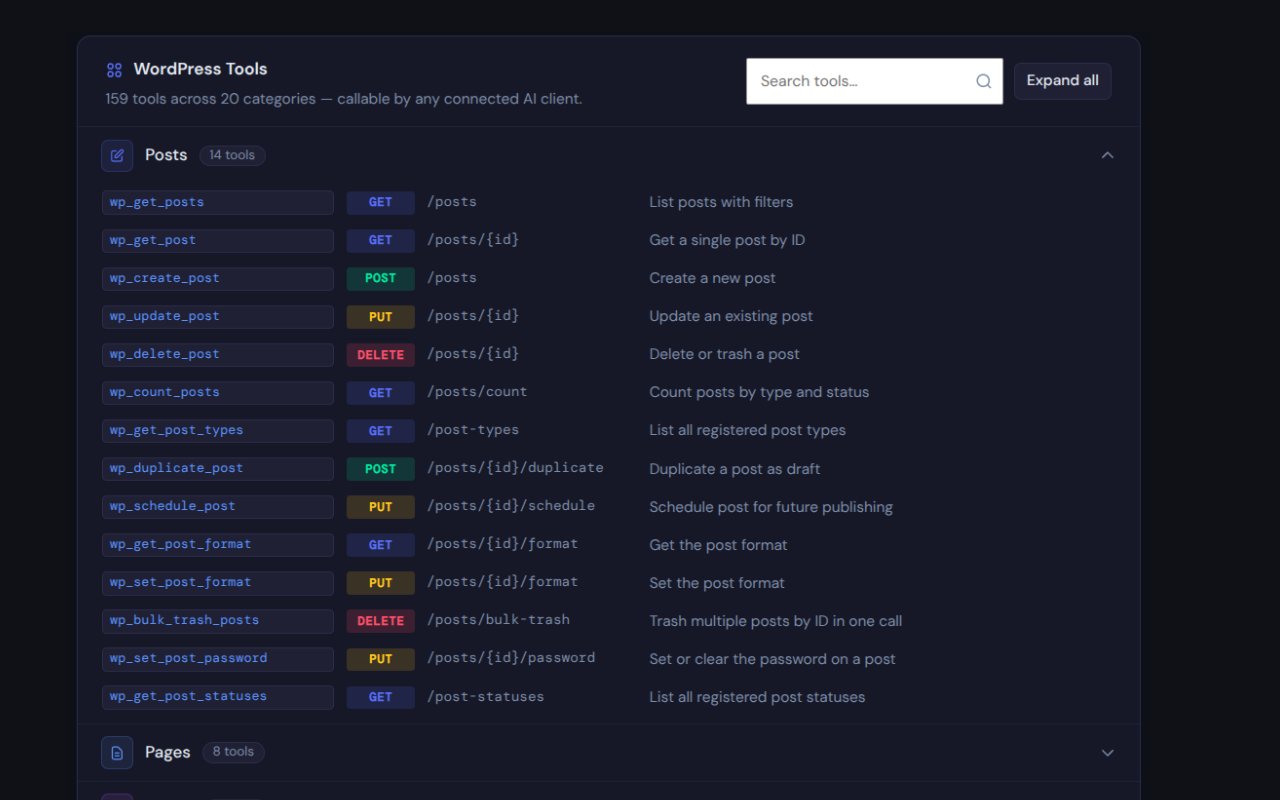
- Overview: server status, tools available on your site, calls and failures today, connected clients, a searchable tool browser, recent activity, and most-used tools.
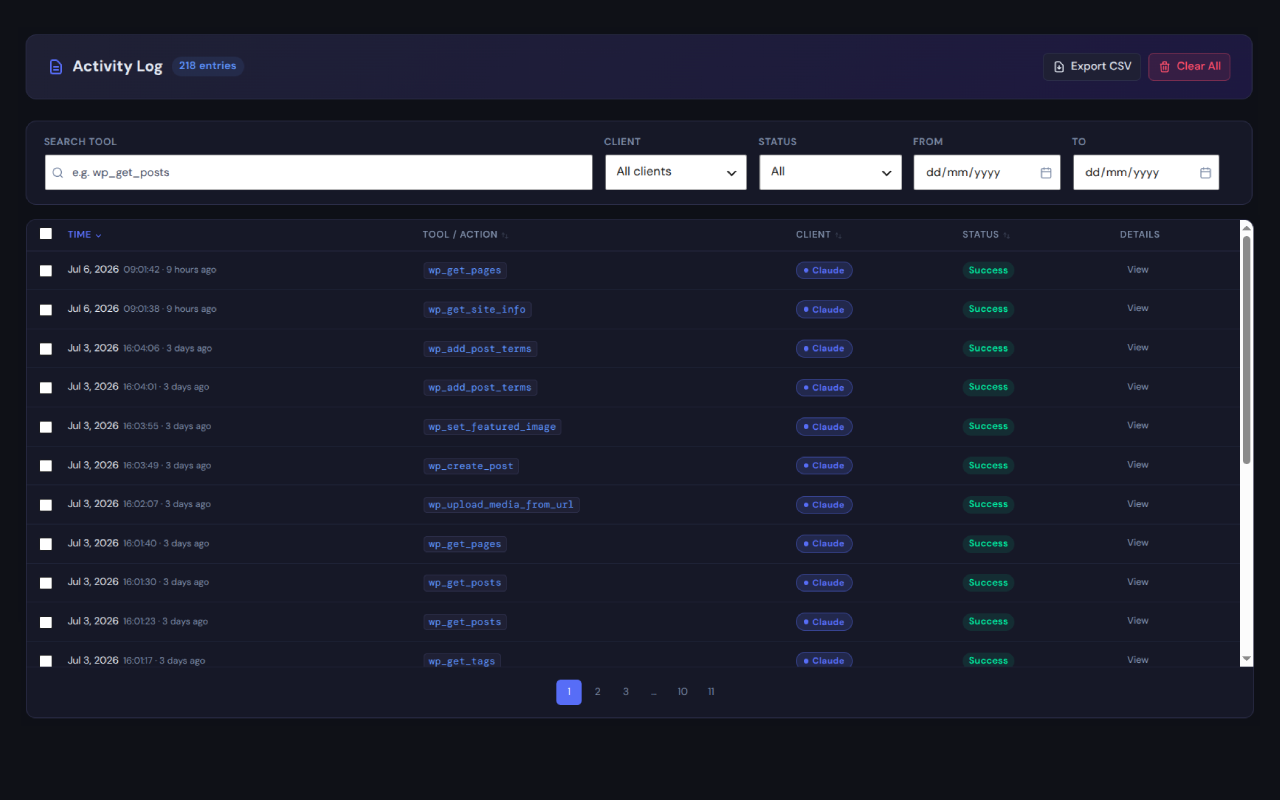
- Activity: every tool call, every rejected connection attempt (expired or revoked token, IP block, rate limit), and every failed connection renewal, each with its reason. Filter by tool, client, status and date, use the one-click filters, undo supported changes, bulk delete, and export to CSV. Times are shown in your site’s time zone. Entries older than 90 days are removed automatically.
- Connection health: checks HTTPS, permalinks, OAuth discovery, and the MCP endpoint over GET and POST. Each problem gets a specific explanation, for example a firewall or CDN blocking
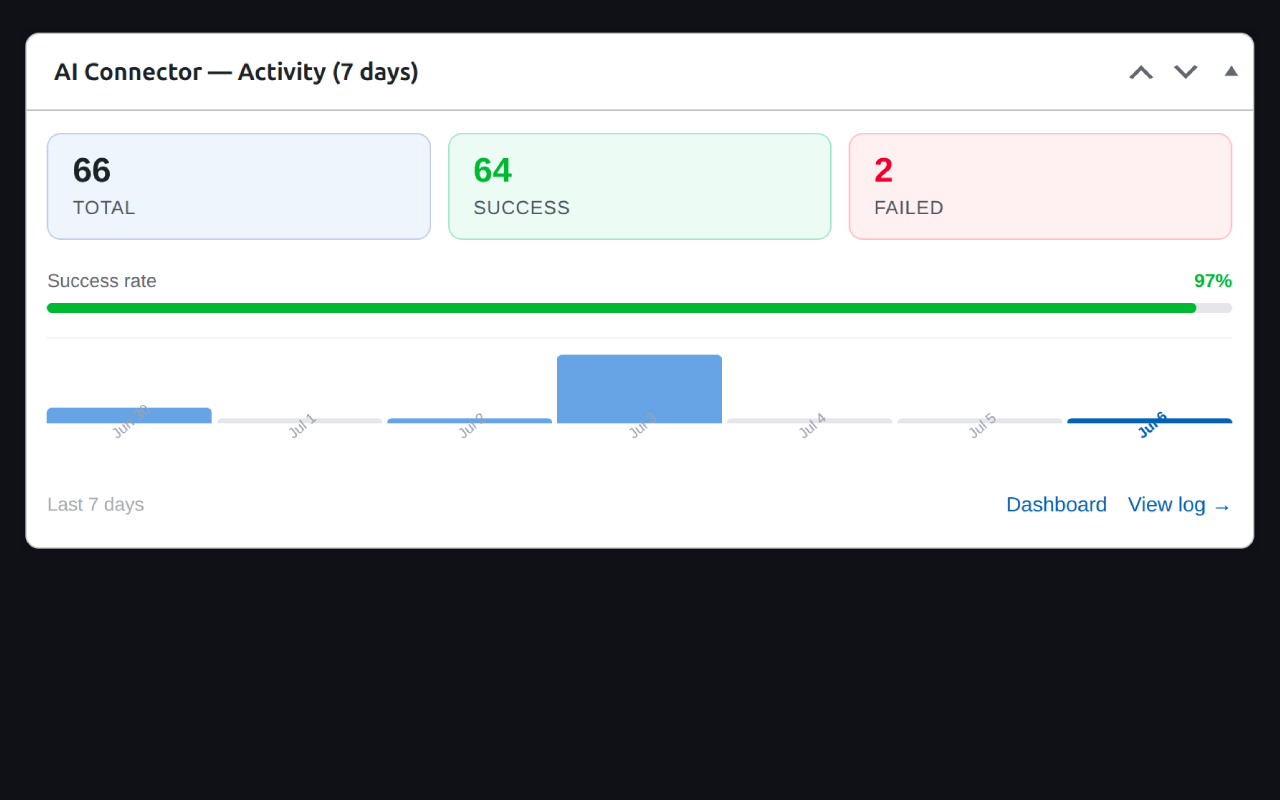
/.well-known/, a security plugin restricting the REST API, or a host redirecting OAuth requests. You also get a list of connected clients with call counts. - WordPress dashboard widget: a 7-day activity chart for administrators. You can hide it from Screen Options.
- A light or dark appearance for the plugin’s own screens. It doesn’t affect the rest of wp-admin.
Privacy
The plugin does not collect telemetry and never sends data to ByteCoreStack. Your Activity log stays in your own database. When you connect an AI client, the results of the tools it calls are sent to that client’s provider (for example Anthropic, OpenAI, or Cursor) and handled under their terms. See External Services below for every case in which the plugin or its tools contact another service.
For developers
- Register your own tools with
bcs_mcp_register_tool( $name, $description, $input_schema, $callback ), or filter the tool list withbcs_mcp_tools. Your callback must check capabilities and validate its input. - React to completed tool calls with the
bcs_mcp_tool_calledaction ($name, $args, $result). - Change who may connect AI clients with the
bcs_mcp_connect_capabilityfilter (defaultedit_posts).
Claude, ChatGPT, Cursor, and the other product names mentioned here are trademarks of their respective owners. This plugin is not affiliated with or endorsed by them.
External Services
This plugin does not send telemetry, analytics, or usage data to the plugin author, and it does not contact any ByteCoreStack server. Nothing below happens until a site administrator enables the MCP server and approves an AI client.
The AI client you connect
The plugin is an MCP server: an AI client you choose and authorize (for example Claude by Anthropic, ChatGPT by OpenAI, or Cursor) calls its tools over OAuth. The plugin does not choose or contact these services itself. When a connected client calls a tool, the result, which can include post content, user names and emails, orders, form entries, or settings, depending on the tool and your account’s permissions, is returned to that client and handled by its provider under their terms and privacy policy. You can disconnect a client at any time from Connection health.
- Anthropic (Claude): Terms, Privacy Policy
- OpenAI (ChatGPT): Terms, Privacy Policy
- Cursor: Terms, Privacy Policy
Requests made only when a specific tool is called
- Plugin, theme, and core install/update tools use WordPress core’s installer and updater to contact the official WordPress.org API, exactly like Plugins Add New. Only a WordPress.org directory slug is accepted, never an arbitrary download URL. Core update checks send the standard version, locale, and environment details WordPress core sends. WordPress.org Privacy Policy
- wp_upload_media_from_url and wp_set_featured_image (with image_url) download the image from the URL given to the tool into the Media Library. Private and loopback addresses are blocked, and downloads are limited to 20 MB.
- wp_find_broken_links sends HEAD requests to the links found in the posts being checked (up to 25 per call) to see whether they respond. Private and loopback addresses are blocked.
Requests made through other plugins you have installed
Some integration tools call another plugin’s own API, and that plugin may contact its service using its existing configuration. The plugin adds no credentials or data of its own:
- Mailchimp for WP tools (list, read, and add subscribers) send requests to Mailchimp. Mailchimp Legal and Privacy
- Google Site Kit tools (Analytics, Search Console, AdSense reports) request report data from Google. Google Privacy Policy
- The Akismet stats tool requests your spam statistics from Akismet. Automattic Privacy Policy
- WooCommerce, Easy Digital Downloads, and GiveWP refund tools may make the store’s configured payment gateway process a refund.
Local self-checks
Connection health and the setup notice send requests only to your own site’s URLs (OAuth discovery, /register, and the MCP endpoint) to detect firewall or permalink problems. Activity records remain in your own WordPress database.
Credits
The admin screens use the DM Sans (Copyright 2014 The DM Sans Project Authors) and DM Mono (Copyright 2020 The DM Mono Project Authors) typefaces, bundled locally in assets/fonts and licensed under the SIL Open Font License 1.1. The license texts are included as assets/fonts/DM-Sans-OFL.txt and assets/fonts/DM-Mono-OFL.txt. No fonts are loaded from external servers.
Screenshots
Installation
Requirements
- WordPress 6.2 or later and PHP 7.4 or later.
- For hosted AI services (Claude.ai, ChatGPT, and similar), your site must be reachable from the internet over HTTPS. A site on localhost can only be used with an AI client running on the same computer.
- Pretty permalinks (any setting except “Plain” under Settings Permalinks).
- A WordPress account with at least the Contributor role to approve the connection. An Administrator account gives the AI client access to every tool.
Install the plugin
- In wp-admin go to Plugins Add New Plugin, search for “ByteCoreStack MCP Connector”, then click Install Now and Activate.
- Or download the zip from WordPress.org, upload it via Plugins Add New Plugin Upload Plugin, and activate it. You can also upload the
bcs-mcp-managerfolder to/wp-content/plugins/over FTP and activate it from Plugins Installed Plugins.
Enable the server and connect an AI client
- Open ByteCoreStack – MCP Connector for AI Tools Connect & settings.
- Turn on Enable MCP Server. The setup check confirms HTTPS, permalinks, and that the OAuth endpoints are reachable.
- Choose your AI app (Claude.ai, Claude Desktop, ChatGPT, or Cursor) and follow the steps shown for it. You will copy your MCP endpoint, which looks like
https://example.com/wp-json/bcs-mcp/v1/mcp, into the app’s connector or MCP settings. - The app opens your site’s authorization screen. Log in if asked, check the account and app name, and click Allow connection.
- Back in the plugin, start the verification step, then send the test prompt in your AI app. The plugin confirms when the read-only test call arrives.
- You can now ask the AI app to work with your site. Review what it does in Activity.
Recommended settings
- Connect with an account that has only the permissions the AI client needs, for example an Editor account for content work.
- Turn on Ask before destructive actions if you want delete-type tools to require a second, confirmed call.
- Use Restrict by IP address only if you know the addresses your AI client connects from. Hosted AI services connect from their provider’s servers.
- If you use a security plugin, firewall or CDN, allow
/.well-known/oauth-protected-resource,/.well-known/oauth-authorization-server,/authorize,/token,/register, and/wp-json/bcs-mcp/*(GET, POST, DELETE and OPTIONS), and exclude them from page caching.
FAQ
-
Is the plugin free?
-
Yes. Every feature and tool is included. There are no paid tiers, license keys, usage limits, or locked features. You only need an account with the AI service you choose to connect, which may have its own pricing.
-
What is MCP?
-
The Model Context Protocol is an open standard for connecting AI assistants to external tools and data. This plugin is an MCP server: it describes your site’s tools to the AI client, and the client decides which ones to call to complete your request. You stay in control, because every call runs with the permissions of the account that approved the connection.
-
Which AI clients can connect?
-
Step-by-step guides are built in for Claude.ai, Claude Desktop, ChatGPT, and Cursor. Any other client that supports MCP over Streamable HTTP with OAuth 2.0 (Dynamic Client Registration and PKCE) should work as well. Older clients that only support the SSE transport can use the legacy
/sseendpoint. Availability of connector features in each AI product depends on that product and your plan with it. -
How do I connect an AI client?
-
Enable the server in Connect & settings, pick your AI app, copy the MCP endpoint into the app, and approve the connection on your site’s authorization screen. The Installation section above has the full steps. The built-in guide then helps you send a read-only test prompt to confirm everything works.
-
Do I need HTTPS? Can I use it on localhost?
-
Hosted AI services require a public HTTPS address, because their servers must reach your site. On a local development site you can use a client that runs on the same computer, such as Claude Desktop or Cursor configured for a local server. Cloud services cannot reach
localhost. -
Who can connect an AI client to my site?
-
By default, any logged-in user with the
edit_postscapability (Contributor, Author, Editor, Administrator) can approve a connection for their own account. Subscribers and customers cannot. To allow only administrators, add this to a small custom plugin:
add_filter( ‘bcs_mcp_connect_capability’, function () { return ‘manage_options’; } ); -
Can an AI client do more than my account is allowed to do?
-
No. Every tool checks the connected user’s WordPress capabilities before doing anything, using the same rules as wp-admin and the REST API. For example:
* A Contributor’s AI client can create and edit that Contributor’s drafts and submit them for review, but cannot publish.
* Role changes requirepromote_usersand are limited to roles you could assign in wp-admin.
* No tool creates new users.If an account is demoted or deleted, its AI clients lose access on their next request.
-
Can I stop an AI client from deleting things by mistake?
-
Yes, in two ways:
* Turn on Ask before destructive actions in Connect & settings. Delete-type tools then return a preview and only run when the AI client repeats the call with confirmation.
* Most edits and Trash actions return an undo token, so the AI client can reverse them within 7 days (see below). -
Which actions can I undo?
-
Most AI changes can be undone: content, block, and SEO edits, anything the AI creates, Trash actions, WooCommerce product, stock, and order status changes, comments, categories and tags, media details, menus, widgets, ACF, user profiles and roles, scheduled events, plugin activation, and supported plugin integrations. See Undo for AI changes above for the full list and what cannot be undone. A tool call returns an undo token only when it actually changed something. To revert from WordPress, open Activity and click Undo on the entry (administrators only). Or ask your AI client to call
bcs_undo_operationwith the token, from the same connection. Either way, it works within 7 days and only once: undoing from the admin also uses up the AI’s token. Each admin undo is recorded in Activity.Published items return to their previous status only if the account can still publish them. An older edit token cannot overwrite a newer edit. Items that were permanently deleted, removed from Trash manually, or that the account can no longer edit cannot be restored.
-
Why does my AI client show fewer than 360 tools?
-
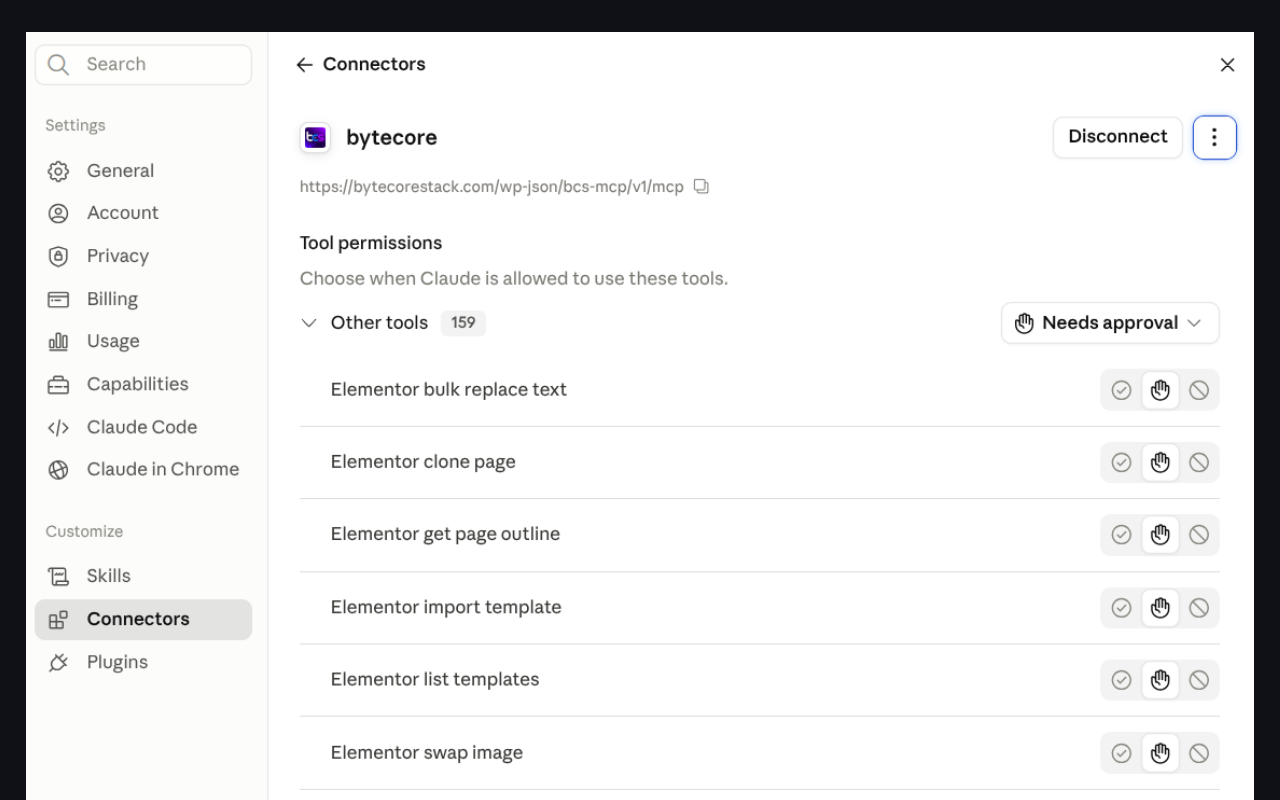
The total counts every integration. Tools for WooCommerce, ACF, Elementor, forms, SEO, backups, CRM, and the other integrations only appear when the related plugin is active. Template tools only appear with a block theme, and the Global Styles tool with a block theme or a theme that has a theme.json. Some AI clients also let you turn individual tools on or off.
-
Can the AI change my theme’s design or my site settings?
-
No. Accounts that can use the Site Editor (
edit_theme_options) let the AI read block theme templates, template parts, and Global Styles, for example to explain how a page is built, but no tool can change them, the custom CSS, or the site settings under Settings. Those affect the whole site, so they stay changes you make yourself in wp-admin. The AI can edit the content of individual posts and pages, block by block. -
Which plugins are integrated?
-
WooCommerce (including Subscriptions, Bookings and Memberships), Easy Digital Downloads, Advanced Custom Fields, Elementor, Bricks, Divi, Gravity Forms, WPForms, Ninja Forms, Formidable Forms, Contact Form 7, WP Simple Pay, MemberPress, Restrict Content Pro, LearnDash, GiveWP, AffiliateWP, Ultimate Member, User Registration, BuddyPress, bbPress, The Events Calendar, WPML, Polylang, TranslatePress, FluentCRM, Mailchimp for WP, Google Site Kit, MonsterInsights, WP Statistics, UpdraftPlus, Duplicator, All-in-One WP Migration, Wordfence, Sucuri, Two Factor, Akismet, Jetpack, WP Mail SMTP, WP All Import/Export, Custom Post Type UI, Code Snippets, Redirection, Broken Link Checker, CookieYes, and Complianz. SEO tools work with Yoast SEO, Rank Math, All in One SEO, SEOPress, Slim SEO, and The SEO Framework. What each tool can do depends on the integrated plugin’s version and settings.
-
Does the plugin send my data to ByteCoreStack or collect telemetry?
-
No. There is no telemetry, analytics, or “phone home” of any kind, and the Activity log stays in your database. The data your AI client asks for is sent to that AI client and its provider. A few tools contact other services when they are called, such as WordPress.org for plugin installs or an image URL you provide. All of these are listed under External Services.
-
What is stored in the Activity log?
-
For each tool call: the time, the AI client, the tool name, the arguments, a summary of the result, and whether it succeeded. Long fields are shortened, and credential-like values are replaced with
[REDACTED]. Rejected connection attempts are logged with the reason. Entries are deleted automatically after 90 days, and you can export them to CSV or delete them at any time. -
Does it support rate limits, IP restrictions and multisite?
-
- The MCP endpoint allows 60 requests per minute per IP address, and client registration has its own limit.
- You can restrict the MCP endpoint to specific IP addresses or IPv4 ranges under Connect & settings Restrict by IP address.
- On multisite, each site has its own settings, connections, and Activity log, and users can only connect to sites they are members of.
-
My AI client cannot connect. What should I check?
-
- Open Connection health and click Run diagnostics. Each failed check explains the cause and the fix.
- Make sure the server is enabled, the site uses HTTPS, and permalinks are not set to Plain. Saving Settings Permalinks once refreshes the rewrite rules.
- Security plugins (for example Wordfence or All In One WP Security), firewalls, CDNs, and some hosts block
/.well-known/paths or restrict the REST API before WordPress runs. Allow the paths listed under Installation Recommended settings, including the DELETE method, and make sure POST requests to/registerand/tokenare not redirected. - Exclude the OAuth and
/wp-json/bcs-mcp/URLs from page caching. - Check Activity. Rejected attempts show why a token was refused, for example expired, revoked, or the account not allowed to connect.
-
My AI client says it has no tools, or keeps asking me to reconnect.
-
Disconnect and reconnect the connector in the AI app, then approve it again on your site. If you recently changed the account’s role, check that it still has the capability needed to connect. If tools are still missing, run Connection health to confirm the MCP endpoint is reachable.
-
My AI client says the connection has expired. Why?
-
Access tokens last one hour and are renewed automatically. The connection itself stays valid for 30 days after the last renewal. If your AI client asks you to reconnect sooner, open Activity and look for an oauth_refresh_failed entry. It names the client and gives the reason: the client was disconnected or OAuth was reset, the account lost permission to connect, a backup was restored, or the connection went unused for 30 days. Version 1.2.5 also fixes the most common cause, an AI app refreshing from several places at the same moment. Reconnect once after updating.
-
I restored a backup, moved the site, or want to disconnect everything.
-
Remove the connector in your AI app, then use Connect & settings Disconnect all AI apps. This revokes all tokens and clears registered clients for this site. Add the endpoint again and re-authorize. To disconnect a single client, use its Disconnect button in the connected apps list.
-
Can I add my own tools?
-
Yes. Call
bcs_mcp_register_tool()from your plugin or theme with a name, description, JSON Schema for the input, and a callback, or add tools with thebcs_mcp_toolsfilter. Your callback runs as the connected user, so always checkcurrent_user_can()and validate every argument. -
What happens when I deactivate or uninstall the plugin?
-
Deactivating stops the MCP server and its scheduled cleanup but keeps your settings and connections. Deleting the plugin from the Plugins screen removes its database tables (Activity log, OAuth clients and tokens, undo records), options, transients, and per-user notice settings. Export any Activity you want to keep first.
Reviews
There are no reviews for this plugin.
Contributors & Developers
“ByteCoreStack – MCP Connector for AI Tools” is open source software. The following people have contributed to this plugin.
Contributors
Translate “ByteCoreStack – MCP Connector for AI Tools” into your language.
Interested in development?
Browse the code, check out the SVN repository, or subscribe to the development log by RSS.
Changelog
1.2.5
Security release that completes the WordPress.org Plugins Team review after the wp_update_user_meta Subscriber privilege-escalation reports (CVE-2026-103068 and CVE-2026-19807), plus undo for AI changes, 24 new tools for block editing, bulk content, read-only Site Editor access and WooCommerce, fixes for permission and data bugs in existing tools, connection and time-zone fixes, and a refreshed admin design. Full details are in changelog.txt.
Security
* Only accounts that can edit posts (Contributor and above) can authorize an AI client. Subscriber and Customer accounts can no longer get MCP tokens. Developers can require more with the bcs_mcp_connect_capability filter.
* The token owner is re-checked on every MCP request and on every refresh, so access ends as soon as an account is demoted or deleted.
* The MCP REST routes check the OAuth token in a real permission callback (previously __return_true with the checks in the handler). AI clients see exactly the same responses, and the rate limit still counts each request once.
* The refresh grant authenticates confidential clients with their client secret, unknown client IDs are rejected, and the consent form re-validates PKCE.
* All 336 existing tools were audited, and each one checks the WordPress capability for its specific action. The 24 new tools follow the same rules.
* User meta tools only accept safe profile fields and need promote_users. Role changes are limited to roles you could assign in wp-admin and never your own role. Email changes need edit_users. Password reset and session tools check the specific user.
* Post and term meta follow WordPress protected-meta rules, attachment file paths and trash bookkeeping keys can never be changed, nested values are rejected, and secrets are redacted on read.
* Publishing, scheduling, and private status need the post type’s publish permission. Creating posts of a type or for another author needs the matching permission. Draft and private content is no longer listed or read without permission.
* wp_run_shortcode is administrator-only. wp_get_plugin_settings redacts whole secret options (such as salts and license keys) and needs a plugin name of at least 3 characters. bbPress reply trashing needs delete_post. Comments are attributed to the connected account.
* The broken-link checker refuses private and loopback addresses, and the public discovery response no longer shows the plugin version.
New: block editing, bulk content, and store tools
* Block editing: list a post’s blocks, then insert, update, move, or delete a single block, including inside Groups and Columns.
* Site Editor (block themes): read templates, template parts, and Global Styles (needs edit_theme_options). Changing them is not offered.
* Bulk create (up to 25) and bulk update (up to 50) posts with per-item results, and a content calendar of published, scheduled, and draft content.
* WooCommerce: create manual orders, list, moderate, and reply to product reviews, and create, edit, or delete shipping zones, shipping methods, and tax rates.
* Block markup from the AI is always cleaned with wp_kses_post(), even for administrators. No new tool makes outbound requests.
New: undo for AI changes
* 114 tools return a single-use undo token when they change something: content, block, and SEO edits, anything the AI creates, Trash actions, WooCommerce products, stock and order status, comments, terms, media, menus, widgets, ACF, user profiles and roles, scheduled events, plugin activation, and supported plugin integrations.
* Undo with bcs_undo_operation from the same AI connection, or with the Undo button next to View in Activity (administrators). Undo works for 7 days, and the saved data is then deleted permanently.
* Undo is all or nothing. It is refused if anything changed again since the AI call, so newer work is never overwritten.
* Permanent deletes, emails, payments and refunds, and installs and updates cannot be undone and never return a token.
Fixed
* AI clients no longer ask you to reconnect after a few days when they renew their connection from several places at once. Failed renewals are logged in Activity with the reason (oauth_refresh_failed).
* Activity times, Calls today, the charts, and the date filters use your site’s time zone instead of the database server’s clock, which could show new entries as hours old. Existing entries are converted once on update.
* PHP warnings when creating comments, a PHP error from an invalid IP allowlist mask, rejected tokens logged as client Unknown, Copy buttons losing their icon, and small buttons growing on hover.
* Backslashes were removed when posts, duplicates, clones, and Elementor data were saved, which could corrupt block attributes and Elementor pages. Elementor image swap now works (it never matched before).
* Tools called without a required argument now return a clear error instead of PHP warnings or a fatal error. wc_get_shipping_zones works again on current WooCommerce, and comment moderation tools no longer crash on a missing comment.
Security fixes in existing tools
* wp_get_comments no longer shows pending comments, or comments on private and draft posts, to accounts that cannot moderate comments.
* seo_bulk_get_meta no longer lists other people’s unpublished posts, and cf7_get_form shows mail settings only to users who can edit the form.
* wp_create_reusable_block requires permission to publish, Bricks and Divi cloning requires edit access to the source post, and comment moderation checks the specific comment.
* User CSV export is administrator-only (WooCommerce shop managers could export every account). Hidden bbPress forums and unpublished WPML/Polylang translations are no longer listed to users who cannot see them.
* OAuth consent screen: clickjacking protection, the destination domain shown, an impersonation warning, and redirect URIs validated before any redirect. A query-string trick that lifted other plugins’ REST API lockdowns is closed, batch requests are limited to 20 calls, and Activity CSV exports neutralize spreadsheet formulas.
* Fixed tools that never worked or crashed: UpdraftPlus backups (now queued in the background and including the database), Mailchimp sign-ups (now double opt-in), BuddyPress activity without the Activity component, Polylang string translation, and Slim SEO detection.
* Second per-tool pass: read tools no longer expose published items of non-public post types (contact-form messages, donations, form entries and similar) to accounts without edit access; password-protected post bodies are withheld from read-only accounts; revisions need edit access; the ACF update tools reject names that are not real ACF fields; log and settings tools mask passwords, keys, and tokens; wc_get_order and order notes need edit_shop_orders; WooCommerce reports read the correct tables under High-Performance Order Storage; and product, variation, coupon, order-status, term, widget, event, and media writes validate their input and check the specific object’s permission.
* Release testing now includes an automated replay of the CVE-2026-103068 / CVE-2026-19807 escalation chain (both trace to the same wp_update_user_meta tool and are closed by a strict profile-field allow-list plus a promote_users requirement) and a data-breach “canary” that confirms no tool ever returns a password hash, session token, application password, or secret option to any role, and that private and non-public content stays hidden from roles that should not see it.
Guidelines and documentation
* Re-checked against all 18 plugin guidelines, the review team’s common issues, and Plugin Check (no errors or warnings).
* External Services lists every outbound request with terms and privacy links, and the authorization screen says tool results go to the AI provider.
* Added the promised IP allowlist setting (Connect & settings, then Restrict by IP address), bundled font licenses, a trademark notice, and cleanup of per-user data on uninstall. The readme was rewritten with setup, security, undo, and troubleshooting details.
Design
* Refreshed admin design in light and dark modes: a navy header with separate page tabs, and redesigned Overview, Connection health, Activity, Connect & settings, and setup wizard screens. The Overview success bar shows failed calls in solid red. Keyboard focus rings are visible and reduced motion is respected.
1.2.4
- Security: Restrict user meta reads, writes, and deletes to safe profile fields. Writes and deletes require permission to promote users and reject array or object values, preventing role and capability changes through user meta. Role assignment also checks permission to edit the target user.
1.2.3
- Added guided setup for Claude.ai, Claude Desktop, ChatGPT, and Cursor, with client-specific instructions, endpoint copying, and a read-only connection-check prompt.
- Reworked the compact admin page navigation and reorganized Connect & settings to make the setup flow easier to follow and reduce repeated endpoint details.
- Added four dashboard metrics: Available Tools, Calls Today, Failed Today, and Connected Clients; refreshed the tool browser and recent activity presentation.
- Improved Connection health status, diagnostic results, and the Run Diagnostics card; refreshed Activity filters and layout for easier scanning.
- Polished the light and dark admin themes, card layouts, spacing, and button hover, focus, and active states.
- Kept existing OAuth connections, settings, and activity history intact on upgrade; addressed WordPress coding-standard findings in translated strings and template variables.
- Updated setup and troubleshooting documentation.
1.2.2
- Added 19 WordPress tools, optional confirmation for destructive actions, and admin theme and tools-browser improvements.
1.2.1
- Improved OAuth/firewall diagnostics, connection-failure logging, credential redaction, and security-plugin compatibility.
1.2.0
- Added 96+ tools and integrations, including analytics and translation support; removed external font requests from admin pages.
1.1.0
- Added SEO, forms, LMS, e-commerce, page-builder, backup, CRM, community, and events integrations plus diagnostics and admin improvements.
1.0.0
- Initial release with OAuth 2.0/PKCE, MCP transports, WordPress tools, dashboard, and activity log.